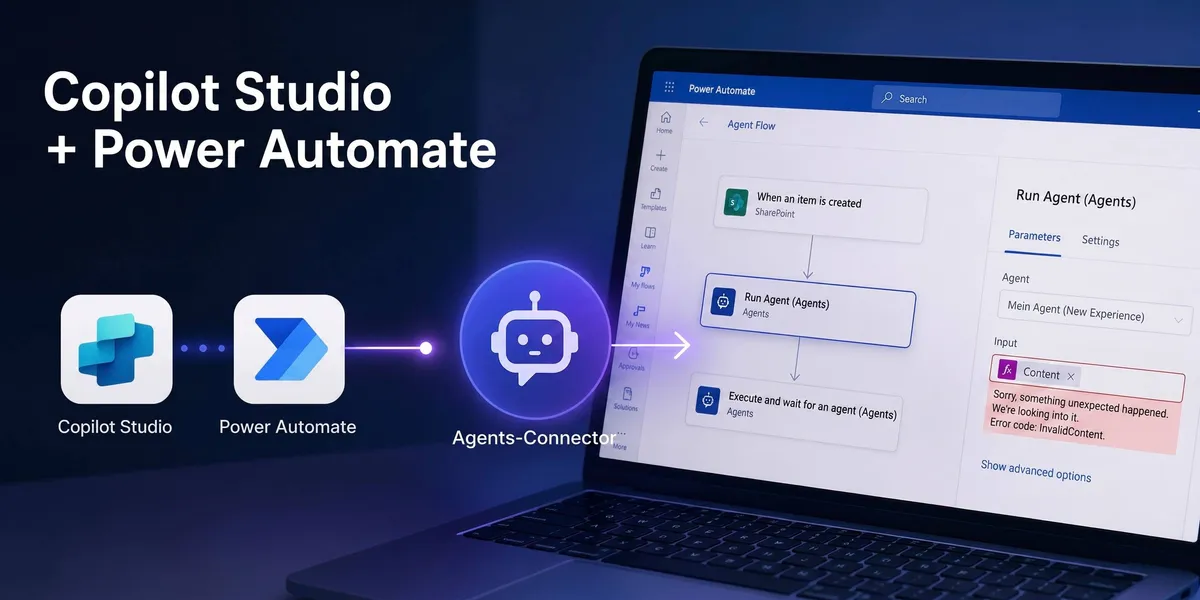
An agent from the new Copilot Studio only answers with an InvalidContent error in the classic Power Automate step, and the flow still reports success. Here is how I got it working anyway, using the workflow builder, a small URL trick and copy/paste.
Sorry, something unexpected happened: Calling a Copilot Studio (New Experience) agent from Power Automate
This is my first blog post, and I’m starting with something that kept me busy for quite a few days. I wanted to call an agent from the new Copilot Studio, so the New Experience, out of an existing Power Automate flow. Sounds like a small thing. It really wasn’t.
Let me take you through the whole thing: what the scenario was, where it broke, and how I got it working in the end.
One thing up front about the screenshots: the flow you see in them is not our actual live flow. I rebuilt the scenario as a small pseudo test flow purely to illustrate it here. The structure matches what I really ran, it just doesn’t contain any real data or customer specifics.
Where I startedh2
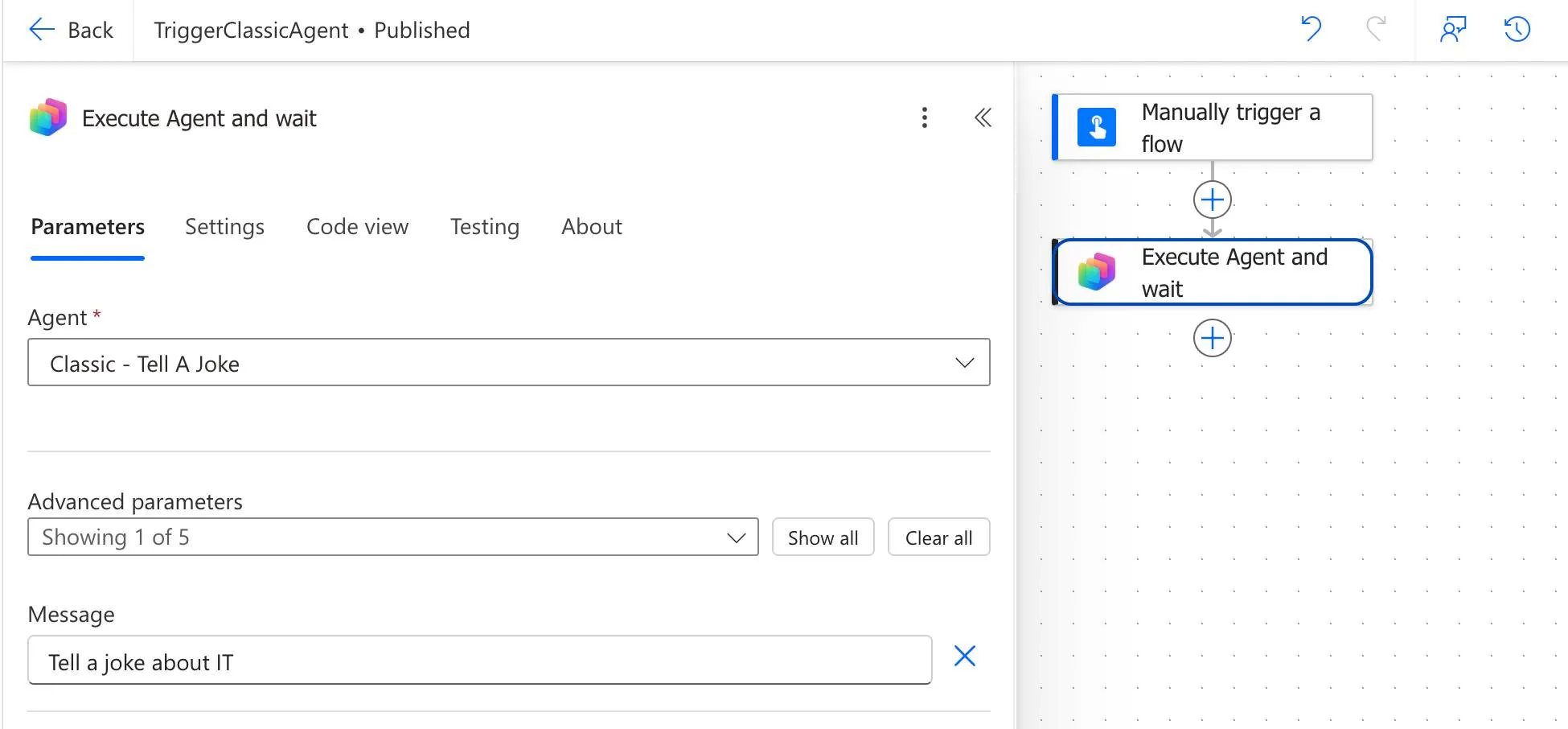
We had a Power Automate flow that runs the “Execute Agent and wait” step from the Copilot Studio connector. So it calls an agent I built in Copilot Studio beforehand, and the flow then patiently waits until an answer comes back. With the old Copilot Studio that worked fine, that was our proven setup.
Why I wanted to switch in the first placeh2
The new Copilot Studio (new experience), has been around for a while now. It isn’t GA yet, so not generally available, but I think it’s already surprisingly mature.
What actually triggered all of this was one specific agent. I believe it was a business agent to begin with, and it didn’t work particularly well in the old Copilot Studio. The exact same agent in the new Copilot Studio worked a lot, and I mean a lot better. From what I can tell that comes down to the new orchestrator, or rather the new engine running underneath. So if an agent is behaving oddly for you in the old studio, I’d definitely test it against the New Experience.
And from there the idea was obvious. I take the Power Automate flow I already have and just put the other agent into that step. Same flow, just the agent from the new studio instead of the old one.
Two agents that look exactly alikeh2
To show that nothing exotic is going on here, I built two deliberately boring agents for this article. Both are supposed to do nothing but tell a joke.
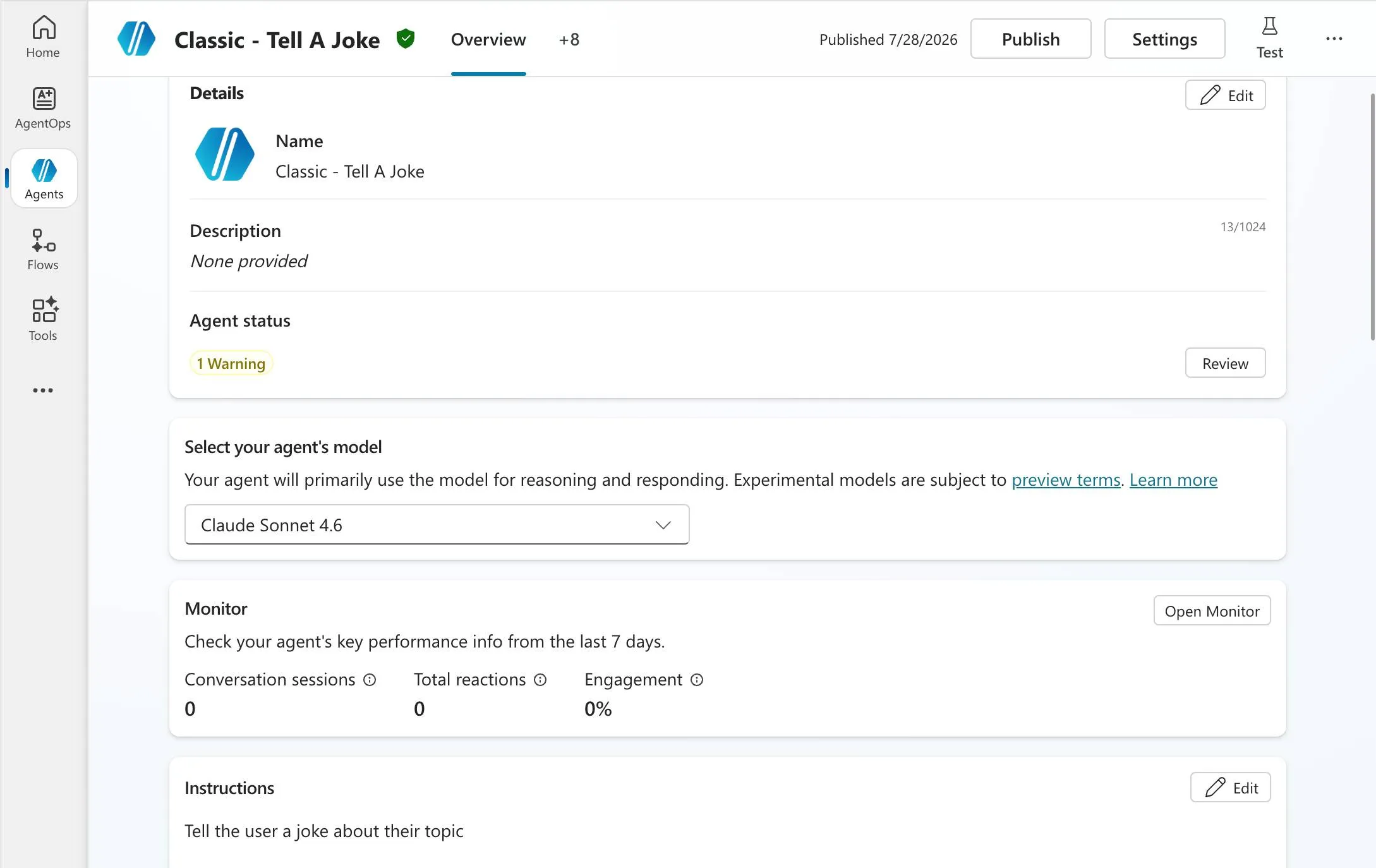
One lives in the classic Copilot Studio and is called “Classic - Tell A Joke”.
The other lives in the New Experience and is called “New - Tell A Joke”.
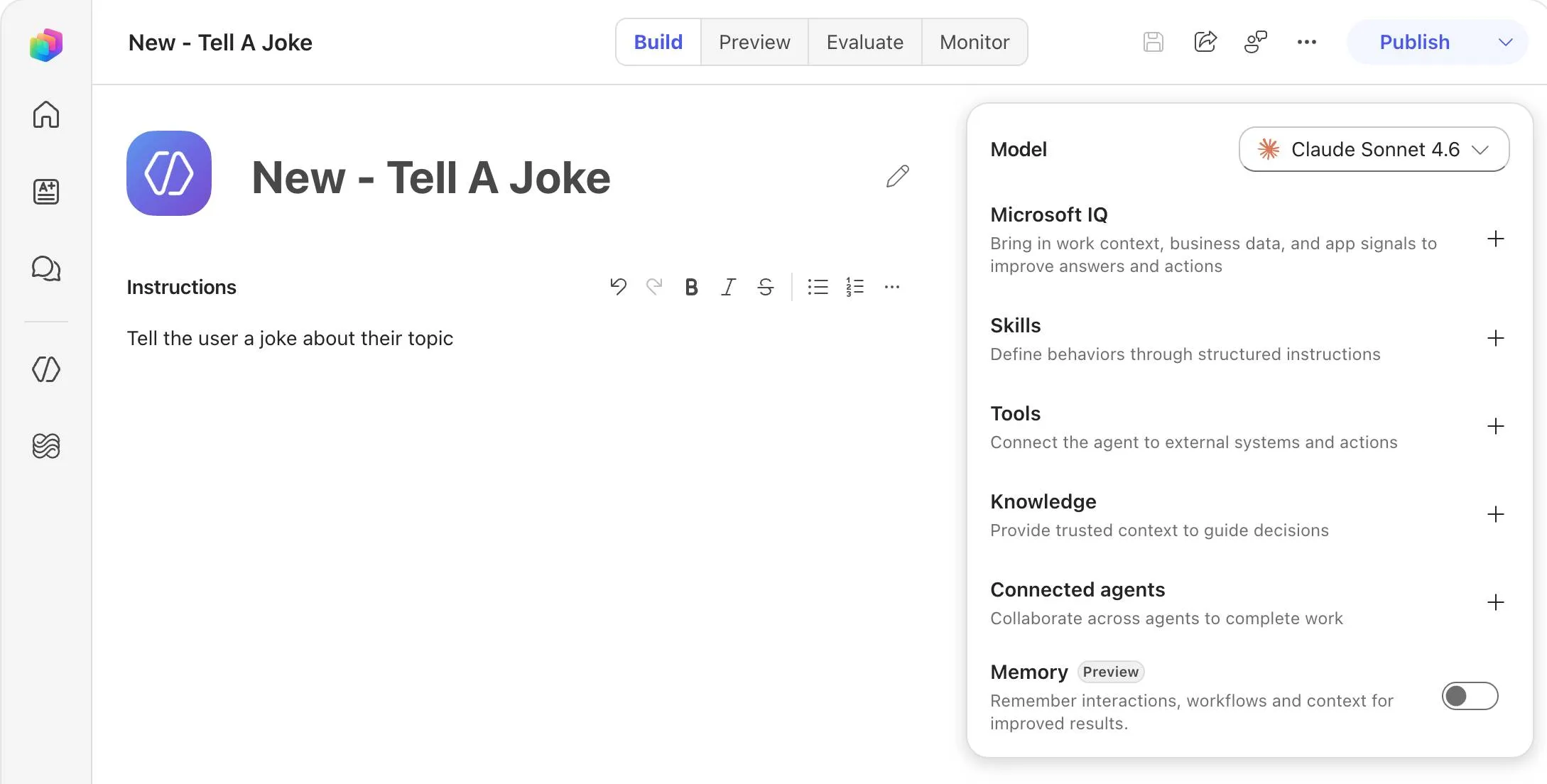
Same model, same instruction, same job. The only difference is which studio the agent sits in. That matters to me because it rules out all the obvious explanations: it isn’t a complicated agent, it isn’t knowledge, it isn’t tools, and it isn’t some setting I forgot on one side.
And then came the errorh2
That’s where it started. And in a way that is easy to miss at first.
The flow runs through just fine. Green check, “Your flow ran successfully”, the “Execute Agent and wait” step says Succeeded. No red failure, nothing. If you only look at the run status, you’d think everything is fine.
The error sits in the response itself. You have to expand the step and look at the body.
And that is where it gets awkward, because the two runs look practically identical at first glance. Here is the run with the classic agent first, the way it is supposed to go:
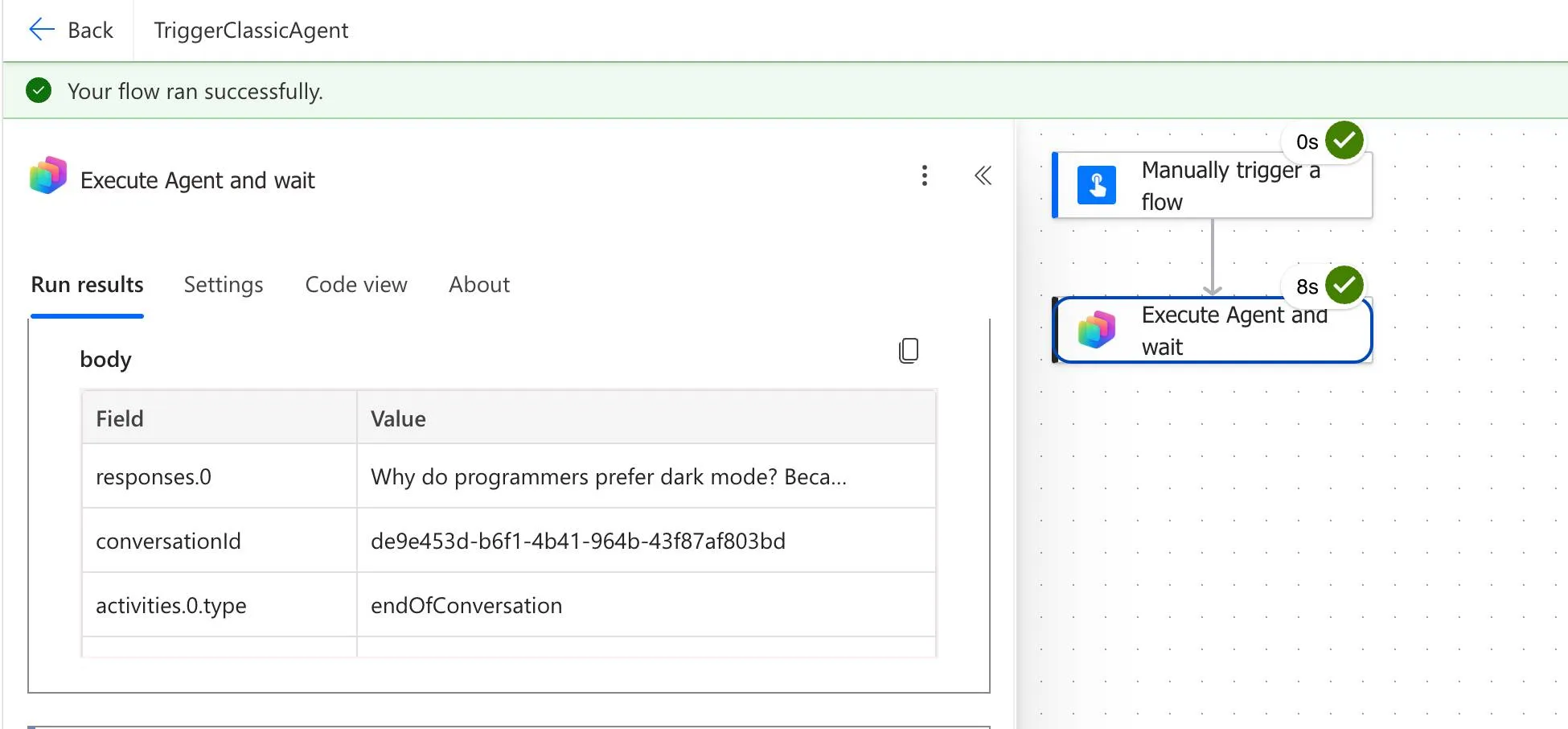
responses.0 actually holds a joke, and activities.0.type is endOfConversation.And here is the same flow with the agent from the New Experience:
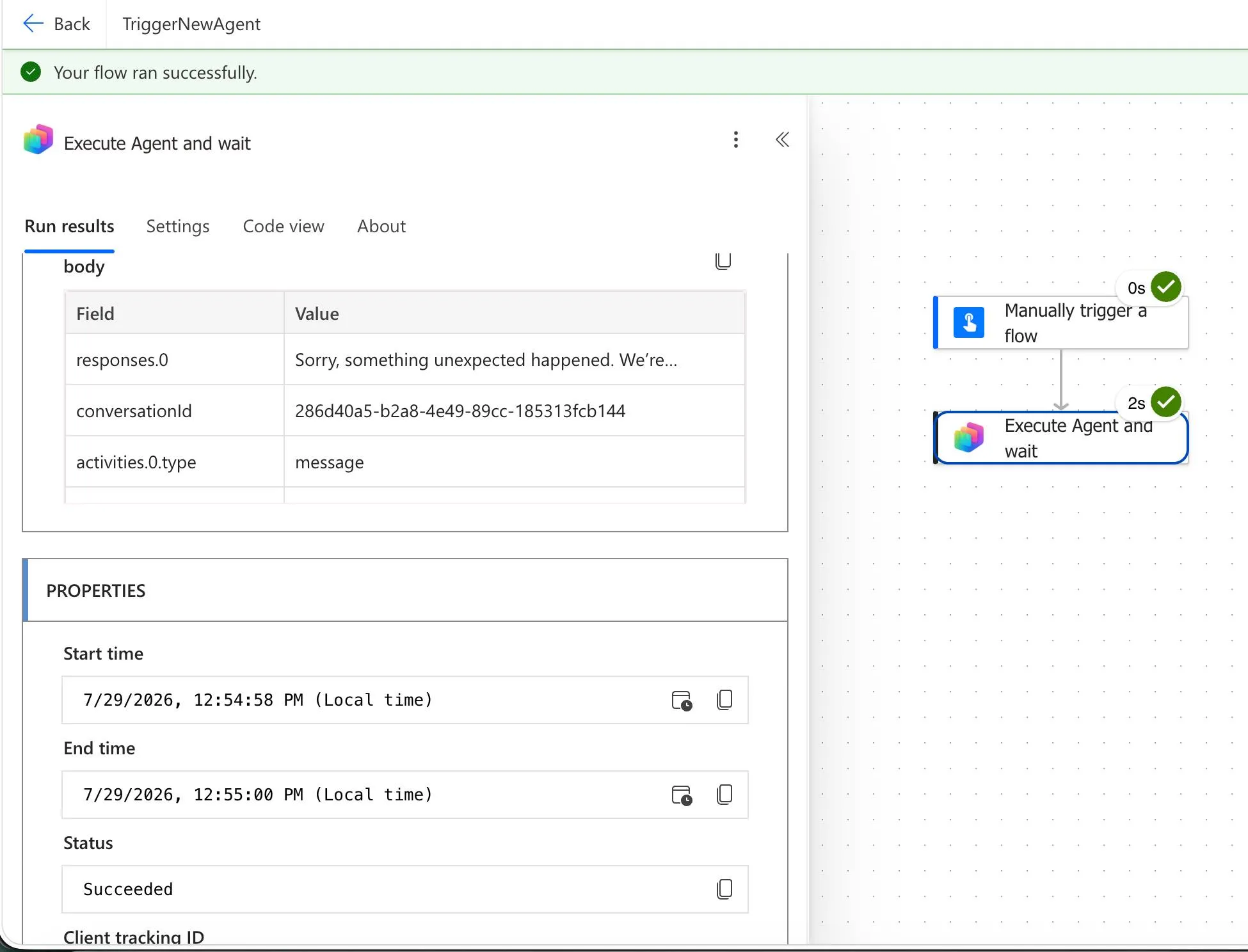
responses.0 holds the error message.Same green banner both times, status Succeeded both times. The entire difference sits in the body:
| Classic agent | New Experience agent | |
|---|---|---|
| Banner at the top | Your flow ran successfully | Your flow ran successfully |
| Step duration | 8s | 2s |
activities.0.type | endOfConversation | message |
responses.0 | “Why do programmers prefer dark mode? Beca…” | “Sorry, something unexpected happened…” |
Spelled out, the response from the New Experience looks like this:
Sorry, something unexpected happened. We're looking into it. Error code: InvalidContent. Conversation ID: {conversation-id}. Time (UTC): 7/29/2026 10:54:59 AMSo technically the agent answers politely, its answer just happens to be an error message. To Power Automate that is a perfectly valid result, hence the green check. And if you process that response further in your flow, you quietly pass this text along, into an email or a Teams post for example.
Two small things only jumped out at me once I put the runs side by side. The broken run is noticeably faster at two seconds than the working one at eight, which makes sense, it bails out immediately. And activities.0.type is endOfConversation for the classic agent but message for the new one. If you want to build a check into your flow, that is probably the more honest anchor than the run status.
And it was stubborn. We tried a few variations, but there was simply no normal way around it. The error stayed.
First glimmer of hope: the workflow builderh2
After poking at it for a while I had the idea to come at it from the other side. So not use the “old” Power Automate, but the new workflow builder that you now also get through the new Copilot Studio.
Said and done. I rebuilt the exact same scenario there, called the agent as an action, ran it. And lo and behold, it worked. Same agent, just called from the workflow builder, and suddenly it goes through.
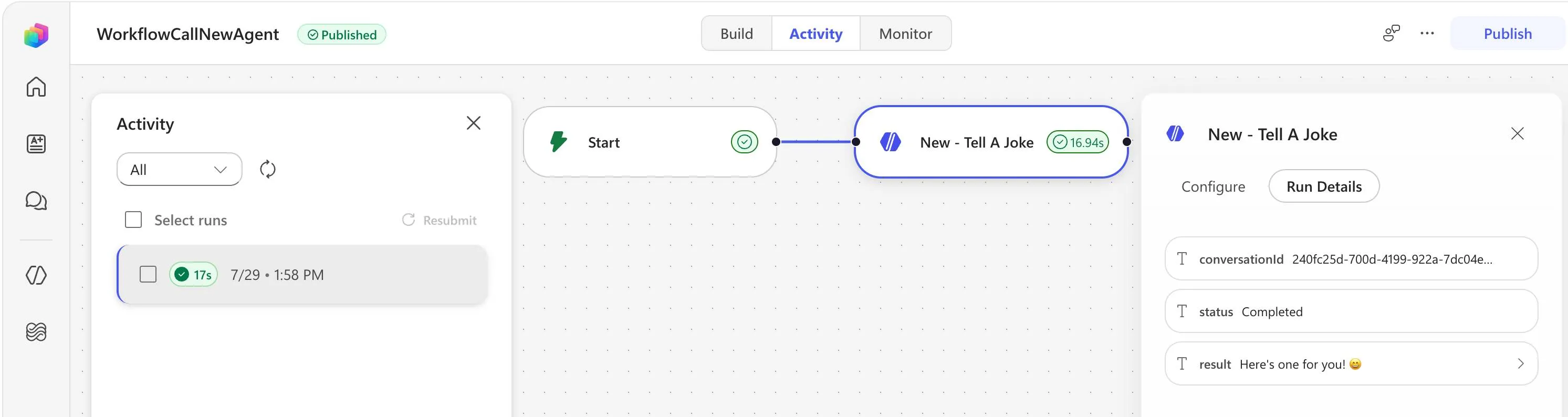
result holds a joke instead of an error message.And while doing that I noticed something I almost find more important than the workaround itself: the workflow builder can call both kinds of agents. The ones from the New Experience just as well as the classic ones. Classic Power Automate, out of the box, can only call the classic ones.
| Calling … | Classic Power Automate | Workflow builder |
|---|---|---|
| Classic agents | yes | yes |
| New Experience agents | no, only through the workaround | yes |
To prove the other half, I rebuilt the same setup with the classic agent in the workflow builder. Runs through without a hitch as well:
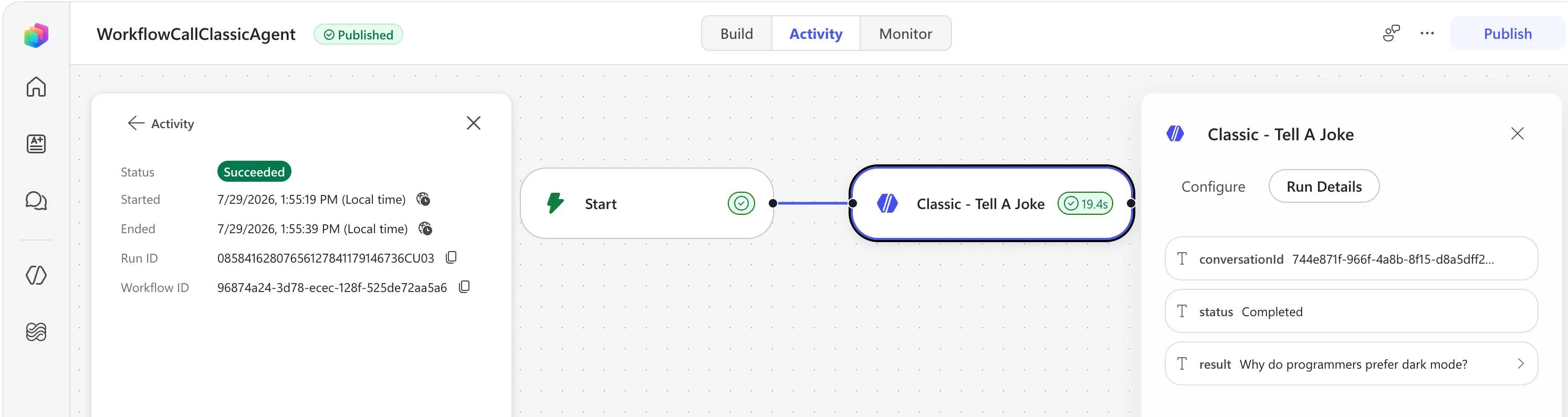
So the direction is unambiguous. The workflow builder isn’t just a new surface for the same thing, here it is the superset. Anyone starting fresh simply has less grief there, because the question of a workaround never comes up in the first place.
That did make me curious. Why does it work here and not in classic Power Automate? The answer is in the connector, but more on that in a second.
The obvious attempt that doesn’t workh2
My first reflex was: if it runs in the workflow builder, I’ll just copy that agent step over. Right click, copy, which puts the JSON on my clipboard, and paste it back into my old Power Automate flow.
Except that’s exactly the problem. The JSON from classic Power Automate and the JSON from the workflow builder are fundamentally different. You can’t just copy an action from one into the other, at least not from the workflow builder straight into Power Automate. Nothing useful happens.
Why that is becomes obvious the moment you look at what actually lands on your clipboard. Here is what comes out of the workflow builder:
{ "version": 1, "marker": "__WFD_CLIPBOARD__", "nodes": [ { "id": "{node-id}", "name": "New - Tell A Joke", "type": "agent", "position": { "x": 566, "y": 278 }, "data": { "config": { "mode": "invoke", "instructions": "Tell a joke about IT", "botSchemaName": "{agent-schema-name}", "outputMode": "text", "inlineModel": "Sonnet46" }, "outcomes": ["…"] } } ], "edges": [], "connectionRefs": { "…": "…" }, "operation": "copy"}That’s a graph. Nodes, edges, even the position on the canvas. And right at the top sits its own marker, __WFD_CLIPBOARD__, which is how the workflow builder recognises its own clipboard format. Power Automate doesn’t know that marker and can’t do anything with the structure behind it. Which is why pasting does precisely nothing.
The actual trick: just swap the URLh2
And now to the part I eventually landed on, which is what solved it.
When I have the workflow builder open, the address bar still says copilotstudio.microsoft.com. So I simply swap that part of the URL for make.powerautomate.com, and the exact same workflow opens up in Power Automate.
https://copilotstudio.microsoft.com/....../<workflow-id>https://make.powerautomate.com/....../<workflow-id>And from there I can absolutely right click the agent action, copy it, and paste it into a different Power Automate flow. Take that detour and the JSON suddenly fits.
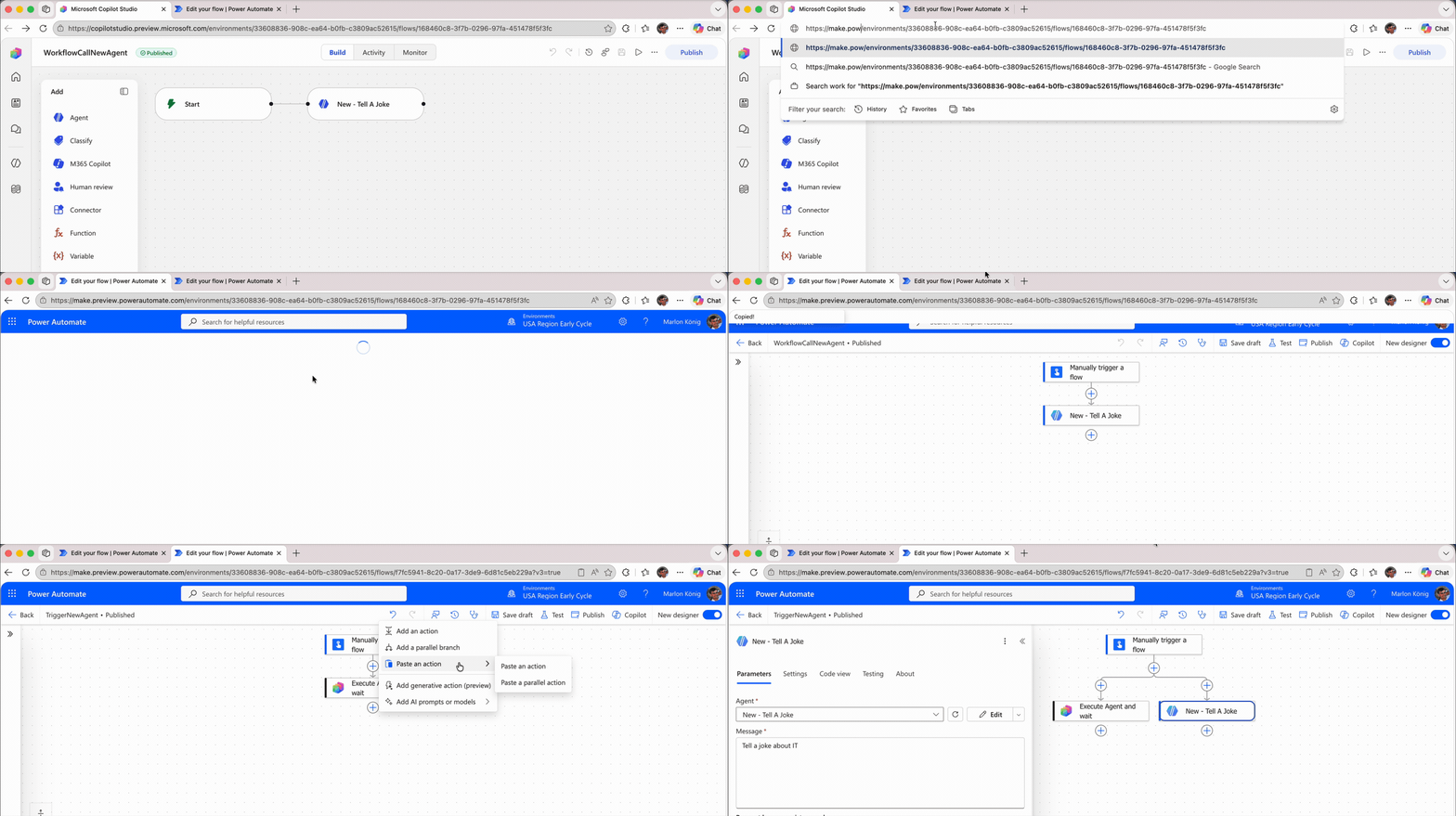
The whole detour in one take: swap copilotstudio.microsoft.com for
make.powerautomate.com to reopen the same workflow in Power Automate, then
right click the agent action, copy it, and paste it into another flow.
So it’s two detours: first build the workflow in the workflow builder, because that’s where the agent call works, and then open that same workflow in Power Automate through the URL swap and copy the action from there.
Why any of this makes senseh2
Now you could fairly ask why I’m going through all this trouble. Surely that’s the same action for calling an agent that I already had in Power Automate anyway.
It isn’t. It’s actually a different connector. It’s just called “Agents”, and here’s the interesting bit: it doesn’t exist in the actual Power Automate at all. It only exists in the workflow builder. So this has nothing whatsoever to do with the original Copilot Studio action “Execute Agent and wait”, it really is a standalone connector with a standalone action at the end of the day. You can’t find it in Power Automate, but you can copy it over using those two detours. And with that it worked after all.
Because once you copy that same action after the URL swap, something entirely different lands on your clipboard:
{ "nodeId": "New_-_Tell_A_Joke", "nodeData": { "id": "New_-_Tell_A_Joke", "nodeInputs": { "parameterGroups": { "default": { "parameters": [16 collapsed lines
{ "label": "Agent", "parameterName": "body/agentId", "parameterKey": "inputs.$.body.body/agentId", "value": [{ "type": "literal", "value": "{agent-schema-name}" }] }, { "label": "Message", "parameterName": "body/prompt", "parameterKey": "inputs.$.body.body/prompt", "value": [{ "type": "literal", "value": "Tell a joke about IT" }] }, { "label": "Request human assistance when unsure": "…" }, { "label": "Output Properties Schema": "…" } ], "rawInputs": ["…"] } } }, "nodeOutputs": { "…": "…" }, "nodeDependencies": { "…": "…" }, "operationMetadata": { "…": "…" }, "settings": { "…": "…" }, "nodeTokenData": { "…": "…" }, "nodeOperationInfo": { "connectorId": "/providers/Microsoft.PowerApps/apis/shared_agentnode", "operationId": "InvokeAgent", "type": "OpenApiConnection" }, "nodeConnectionData": { "…": "…" } }}And there it is in black and white, the connector: shared_agentnode with the operation InvokeAgent. That is emphatically not the Copilot Studio action.
If you want to skip the detours: I put the whole thing in a repo. copilot-studio-agent-power-automate on GitHub contains the exported solution with the working flow and the agent (new experience), plus new-agent-node.json, the JSON for the new agent node you can paste straight into your flow.
The two formats simply think in different categories:
| Workflow builder | Power Automate | |
|---|---|---|
| Root | version, marker, nodes, edges | nodeId + nodeData |
| Mental model | graph of nodes and edges | one step with a parameter model |
| Agent lives in | data.config.botSchemaName | parameter body/agentId |
| Prompt lives in | data.config.instructions | parameter body/prompt |
| Model | inlineModel | not in there at all |
| Canvas position | yes | no |
| Length | a handful of lines | many times that |
That’s why direct copy/paste gets you nowhere, and why the URL detour works. In the end you aren’t copying the same JSON at all, you’re getting each surface to hand you the same action in its own format.
The difference shows best when you hang both actions side by side in the same flow. Which is exactly what I did in the end: the classic “Execute Agent and wait” step on the left, the pasted agent action on the right, both pointed at the same New Experience agent.
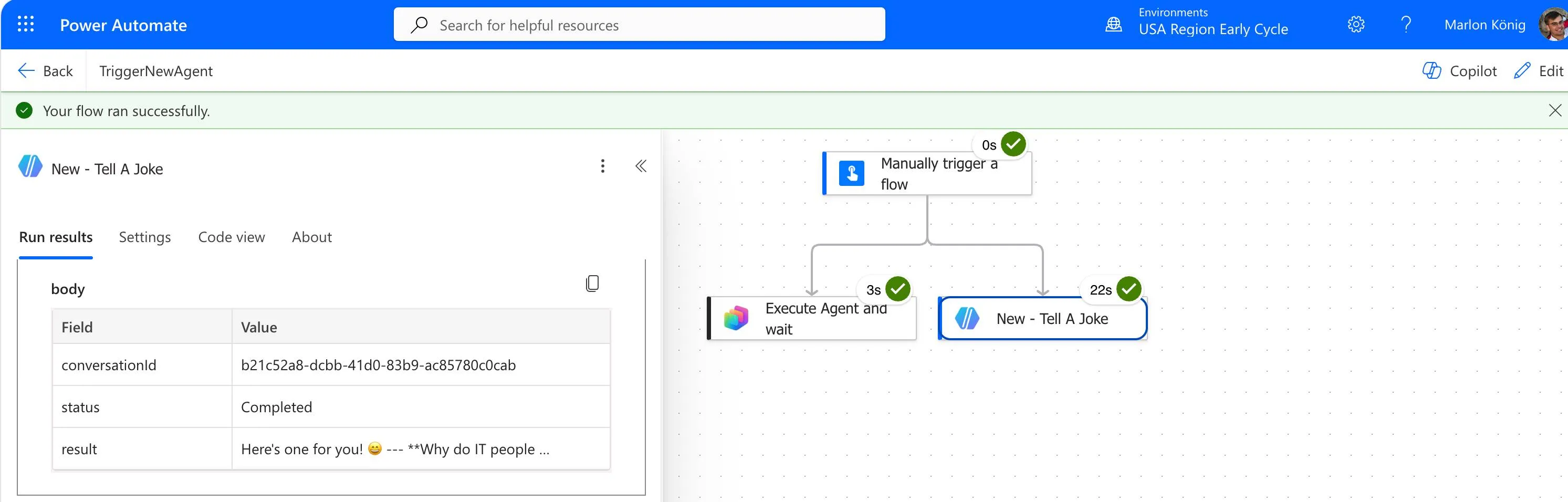
And there’s one more detail that ties neatly back to the JSON from before: the pasted action doesn’t return its result as responses.0 but as result, alongside status and conversationId. That is exactly the outcomeSchema from the workflow builder JSON. So if you adopt this workaround, you have to point your downstream steps at different field names.
| The classic way | My workaround | |
|---|---|---|
| Connector | Microsoft Copilot Studio | Agents |
| Action | Execute Agent and wait | agent action from the workflow builder |
| Agent from the New Experience | InvalidContent in the response | runs |
| Findable in Power Automate | yes | no, only through copy/paste |
| Answer lives in | responses.0 | result |
| Response time | around 8 seconds | 20 to 40 seconds |
I should be honest about that last point, and it stings more than the table makes it look. The joke agent from earlier takes around 8 seconds through the Copilot Studio action. Through the Agents connector my runs landed between a good 20 and 40 seconds, 22 in the screenshot above for instance. That is three times as long at best, for an agent that does nothing but hand back a single sentence. No knowledge, no tools, no thinking.
Keep that in mind before you drop this workaround anywhere someone is waiting on the answer. In a nightly batch run, half a minute is irrelevant. In a flow hanging off a form or a chat, it very much is not. And if your flow loops over multiple records, it multiplies accordingly.
My assumption is that a fair bit of this is preview-state and that it will get faster. I can’t back that up though, that’s just my hope. At that point what mattered to me was that it ran at all.
My takeaway and what I’m trying nexth2
That’s the workaround we’ve sort of settled on for now. It isn’t pretty, but it does the job. Long term Microsoft wants everyone to move to the workflow builder anyway. It’s just that I don’t want to migrate every workflow over right now, so I’ll take my time and watch how it develops.
What I’d find really cool is being able to migrate this automatically later on. Some kind of migrator that moves existing Power Automate flows into the workflow builder, that would be brilliant.
Something else is heading in that direction now: Microsoft has published its own Power Automate skills, power-platform-skills on GitHub. They let you build, edit, run and debug cloud flows straight from Claude Code or the GitHub Copilot CLI. There is a bundled MCP server doing the work underneath, and authentication goes through the Azure CLI.
To me that is the more interesting route, because you are no longer tied to one particular product, you just use whichever AI you already work with. Whether the skills can deal with the workflow builder or only with classic Power Automate I genuinely don’t know yet. I suspect the latter, but I’ll try it soon and write something about it.
One more thing: all of this is a snapshot that can change quickly. The New Experience isn’t GA yet, and I’d strongly expect Microsoft to fix this properly at some point. Until then, if you’re stuck in the same scenario, don’t waste too much time fighting the classic “Execute Agent and wait”, just try the route through the workflow builder. For me that was the difference.
And if you know a better way, please tell me. I’m curious.
Resourcesh2
- copilot-studio-agent-power-automate on GitHub — the exported solution with the working flow and the agent (new experience), plus new-agent-node.json, the JSON for the new agent node to paste straight into your flow.
- power-platform-skills on GitHub — Microsoft’s own Power Automate skills for building, editing, running and debugging cloud flows from Claude Code or the GitHub Copilot CLI.
Comments
Comments are provided by giscus and only load when you choose to. Details are in the privacy policy .